
Samurai SplitVideo Cutter
Split long videosin one clean cut.
Set the length or file size of each part and tap the button. Your long video is split into several files. There is no need to mark every cut by hand.
Free to use (a video ad plays each time you split)
Requires iOS / iPadOS 26 or later
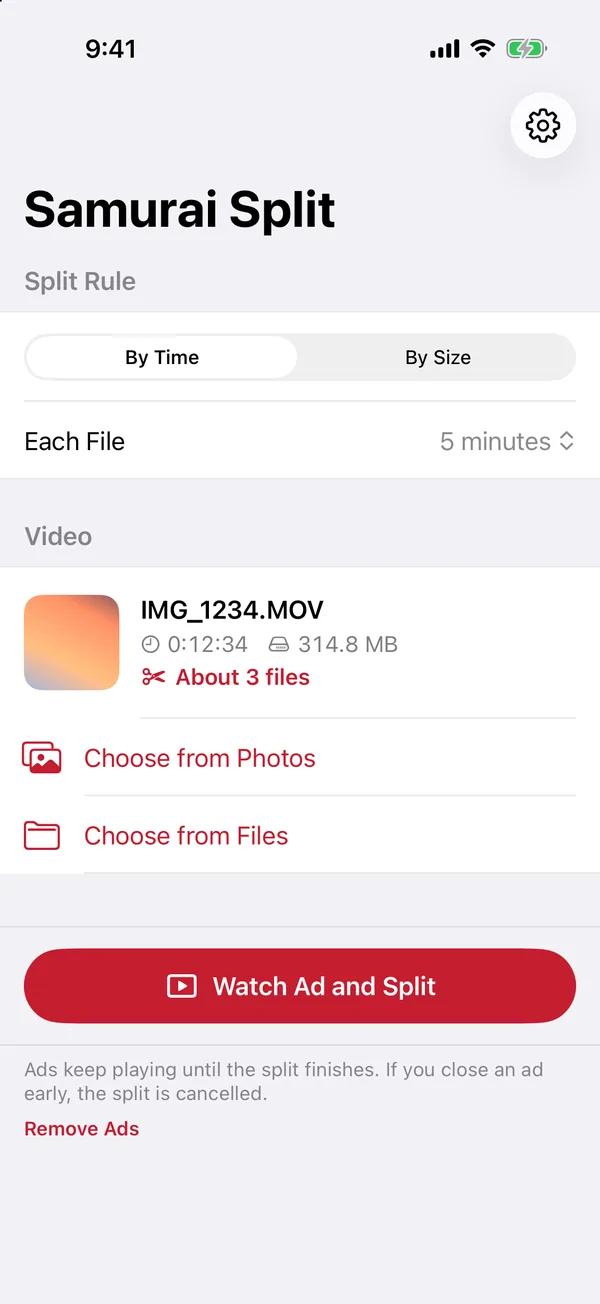
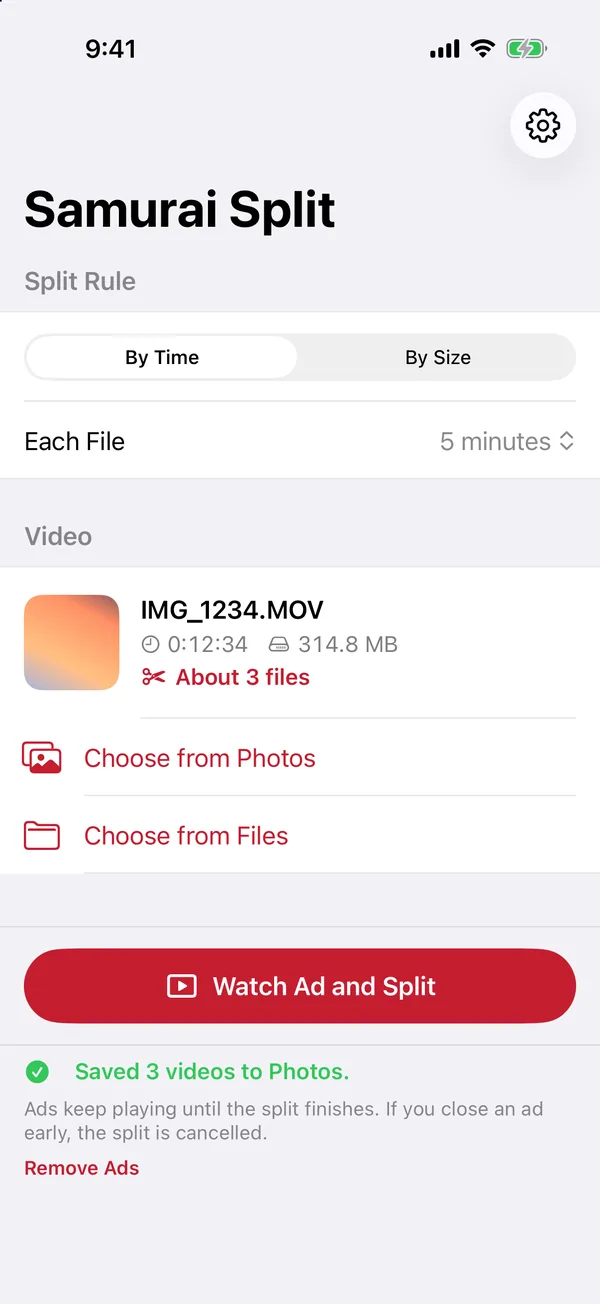
- 15 sec to 10 minSplit by time
- 25 MB to 2 GBSplit by size
- Original qualityWith the Fast method
- On your deviceVideos are never uploaded
When to use it
For videos that are too large to send or too long to post.
Send to an app or system with a file size limit
Split a video so you can send it through an app or system that limits file size. Set each part to 25 MB, 100 MB or whatever the limit is.
Post where the length is limited
Split a video to fit a length limit, such as 15 seconds or 1 minute per part.
Store a long recording in smaller files
Split a long recording into 5-minute or 10-minute files.
How to use it
Pick a video, choose a rule, and tap the split button.
-
Pick a video
Choose a video from Photos or Files. The app shows its length, its size and how many parts it will make.
-
Choose a rule
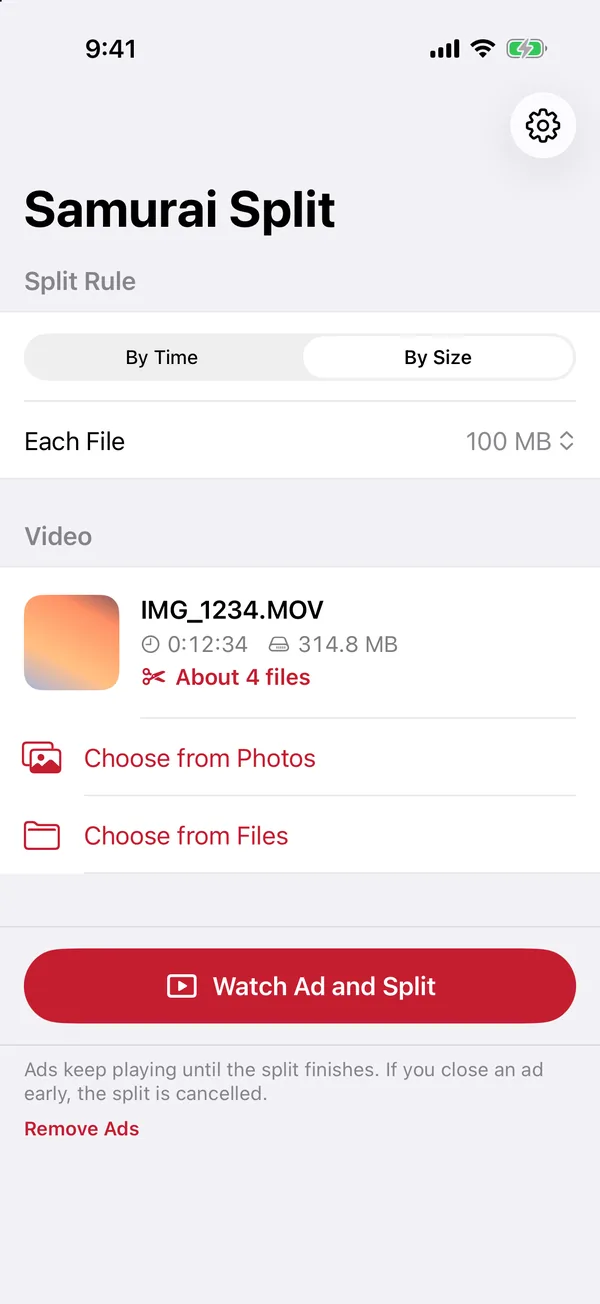
Select "By time" or "By size" and set the value for each part. Pick a preset or enter your own value.
-
Split and save
Tap the split button. The parts are saved under the original name, numbered from 001.
Two ways to split
Choose by whether the limit you need to meet is a length or a file size.
BY TIME
Split by time
Set the length of each part.
- 15 seconds
- 30 seconds
- 1 minute
- 5 minutes
- 10 minutes
- Your own value
BY SIZE
Split by size
Set the file size of each part.
- 25 MB
- 100 MB
- 500 MB
- 1 GB
- 2 GB
- Your own value
Two methods
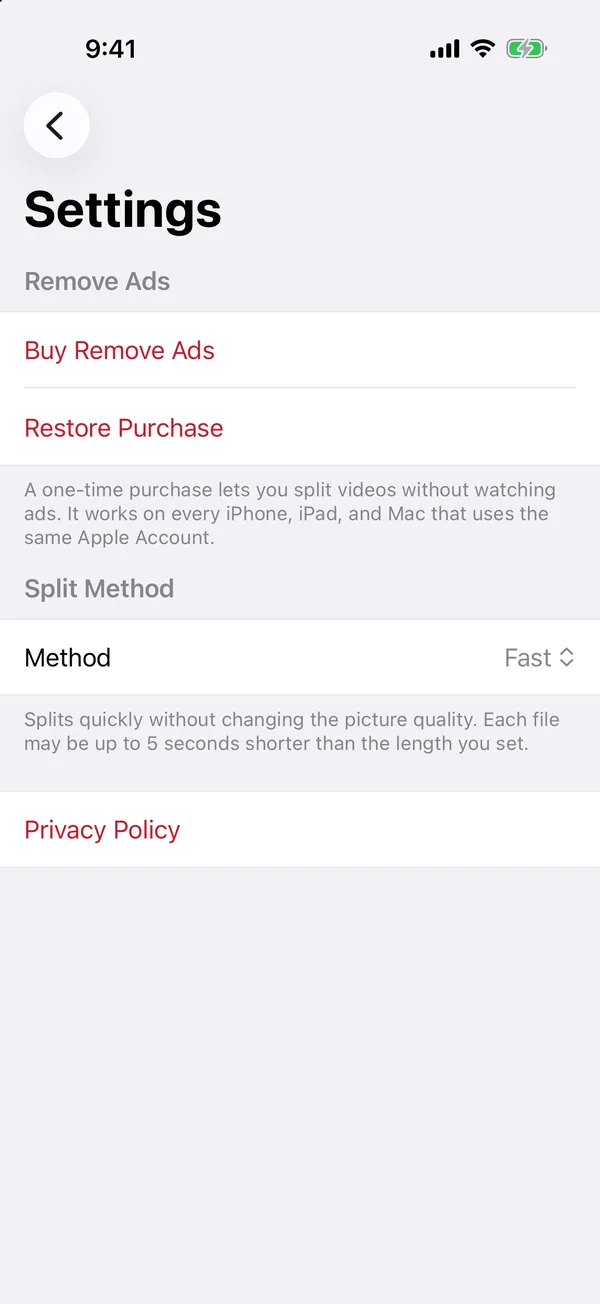
Fast is selected at first. To cut exactly where you asked, switch to Precise in Settings.
FAST
Fast
Splits quickly without changing the quality.
- No re-encoding. The quality stays the same
- Cuts at the video's natural break points
- Each part may be slightly shorter than the value you set
PRECISE
Precise
Re-encodes the video and cuts exactly where you asked.
- Cuts exactly at the points you set
- Choose the quality: Original, High, Medium or Low
- Takes longer, because the video is re-encoded
Your original video is not changed
- The original stays as it is
- Your original video is never changed or deleted. The parts are saved as new files.
- Processed on your device
- Videos are split on your device. They are never uploaded.
- Saved to where you picked it from
- Videos picked from Photos are saved to Photos. Videos picked from Files are saved to the folder you choose.
Price
Free to use. To remove ads, buy "Remove Ads" once.
FREE
Free
A video ad plays each time you split.
- Every rule and both methods are included
- Showing an ad needs a network connection
- If you close the ad early, the split is canceled
REMOVE ADS
One-time purchase
Buy once and split without ads.
- No subscription
- Works on iPhone, iPad and Mac with the same Apple Account
- Buy or restore it from the Settings screen
Frequently asked questions
Will my original video be deleted?
No. Your original video is never changed or deleted.
Why are the parts slightly shorter than the value I set?
The Fast method cuts at the video's natural break points. To cut exactly where you asked, choose Precise in Settings.
Does the quality get worse?
With the Fast method, the quality does not change. The Precise method re-encodes the video, and you can choose the quality: Original, High, Medium or Low.
Can I close the app while it is splitting?
Please keep the app open until the split finishes.
How much free space do I need?
You need enough free space to store the parts.
Are my videos sent anywhere?
No. Videos are split on your device. For how information related to ads is handled, see the Privacy Policy.
Which devices are supported?
iPhone and iPad with iOS 26 / iPadOS 26 or later, and Mac with Apple silicon.